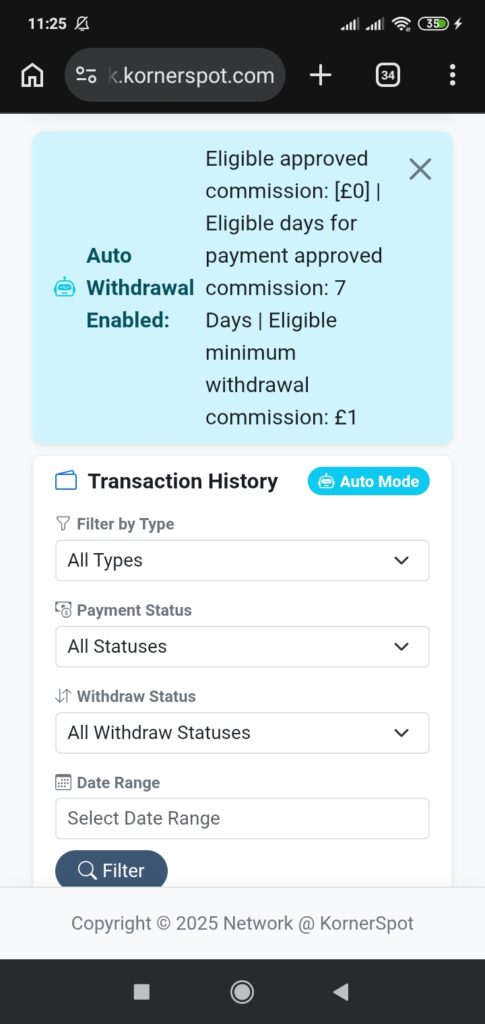
The Affiliate Journey – From Registration to Earnings
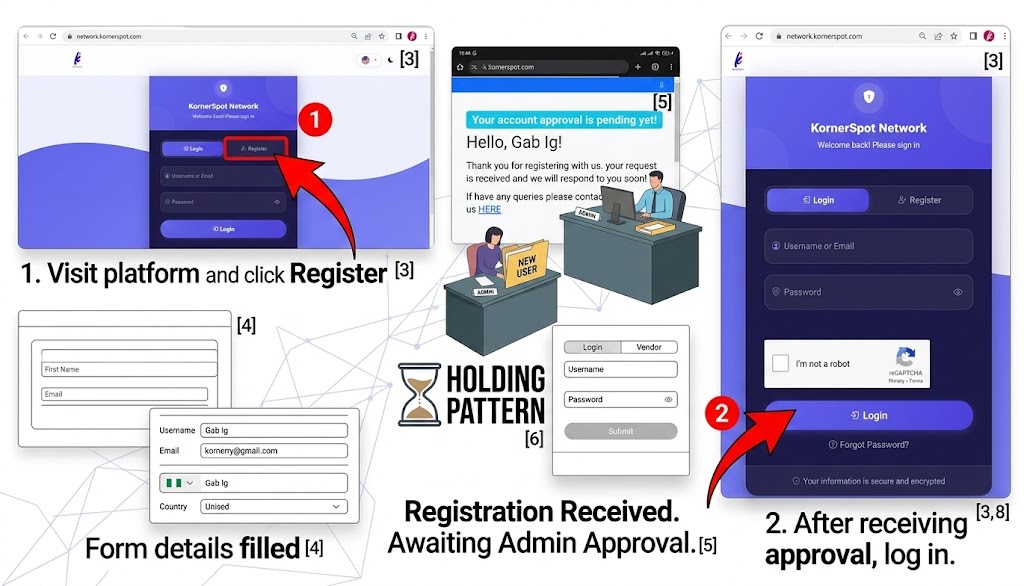
Step 1: Registration
- Get Registered Start by visiting our affiliate platform at https://www.network.kornerspot.com/.
- Tap on the “Register” button and fill out the quick registration form.
- Note that you won’t be able to log in immediately. Your registration will go to our admin team for a speedy review and approval.
Step 2: View Your Dashboard
- Visit the link again to log In & View Your Dashboard Once approved.
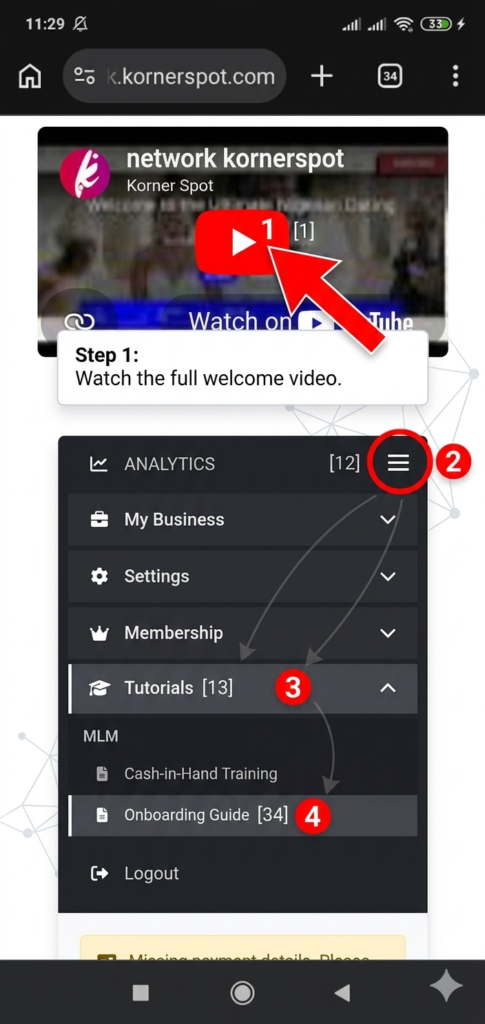
- First watch the welcome video.
- Then tap the hamburger icon, Tutorials, and onboarding guide to see more introductory materials.
The Affiliate Dashboard
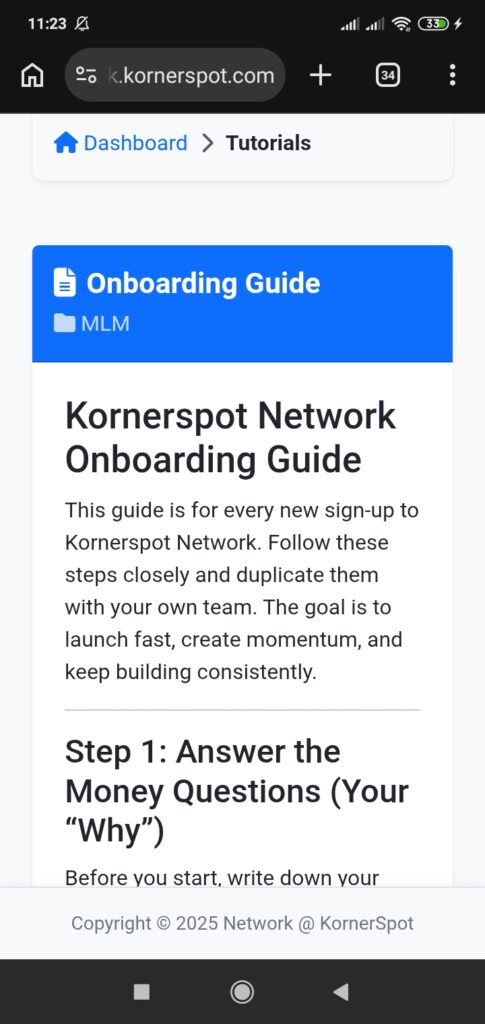
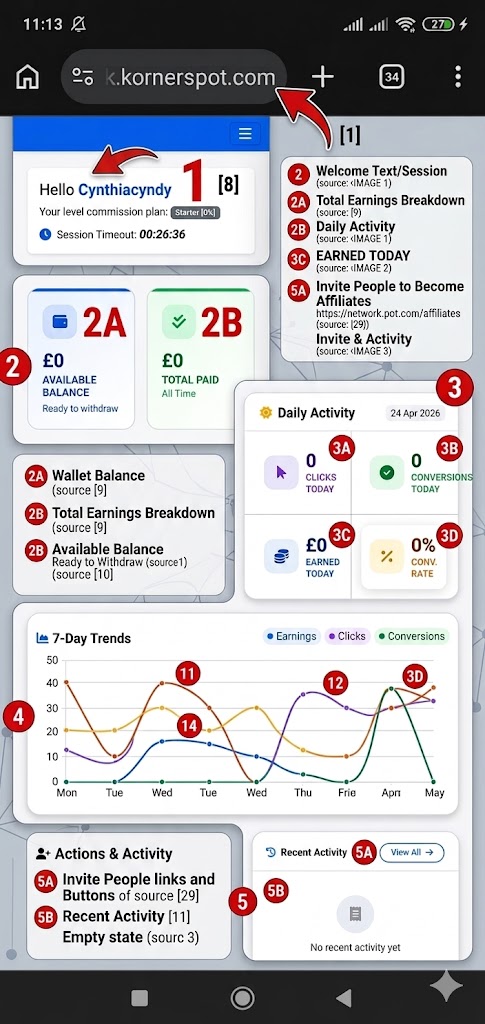
Once you return to your User Dashboard. This is your personal command center, designed to give you a real-time snapshot of your performance, wallet balance, a breakdown of your earnings, and daily activity like clicks, sales, and commissions.
Step 3: Banners & Links – Where Affiliates Find Promotional Materials
As an affiliate, your starting point is the Banners & Links page. This is where all available campaigns from the Admin and from Vendors are listed — banners, text ads, links, and videos that you can use to promote and earn commissions.
Step-by-Step: Getting to Banners & Links
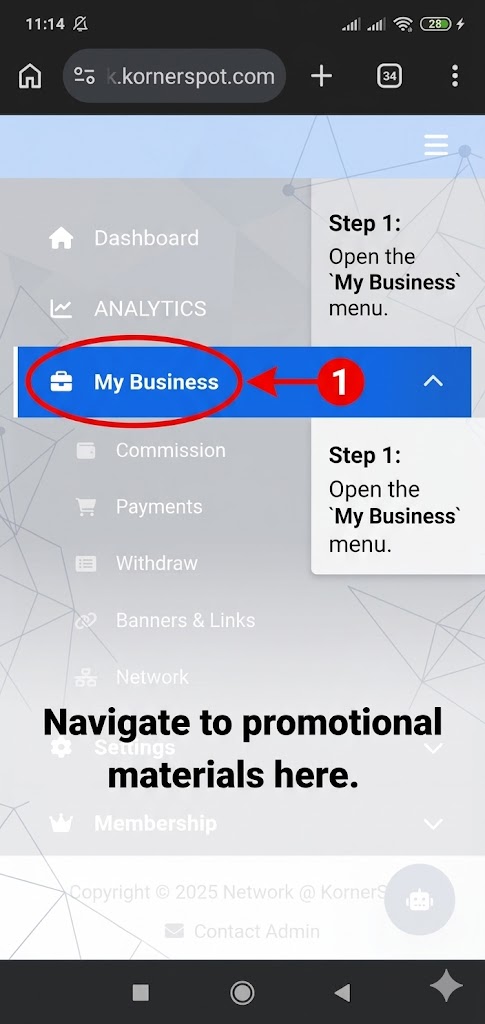
- In the top navigation bar, click My Business to open the dropdown menu.
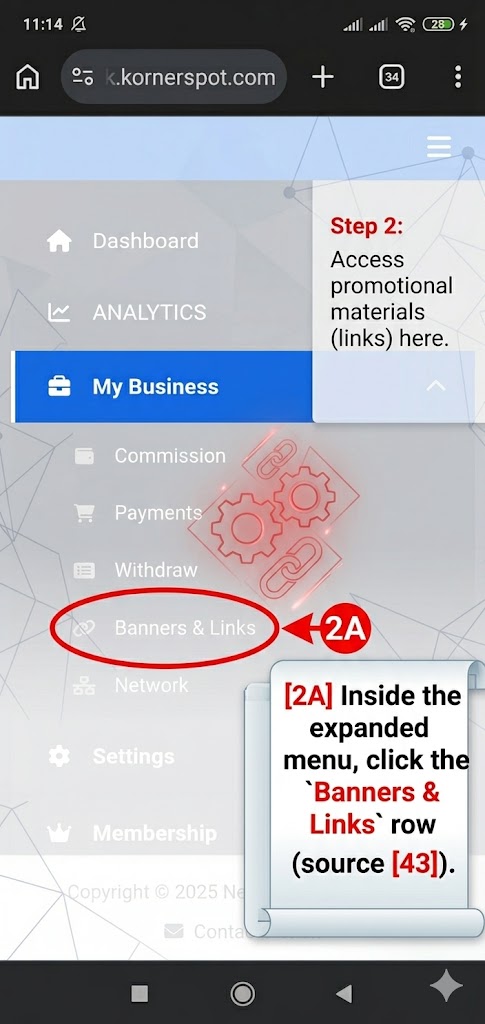
- Under the Links section, click Banners & Links.
- The Banners & Links page opens. It shows all currently available campaigns from all vendors and the admin.
Finding the Right Campaign
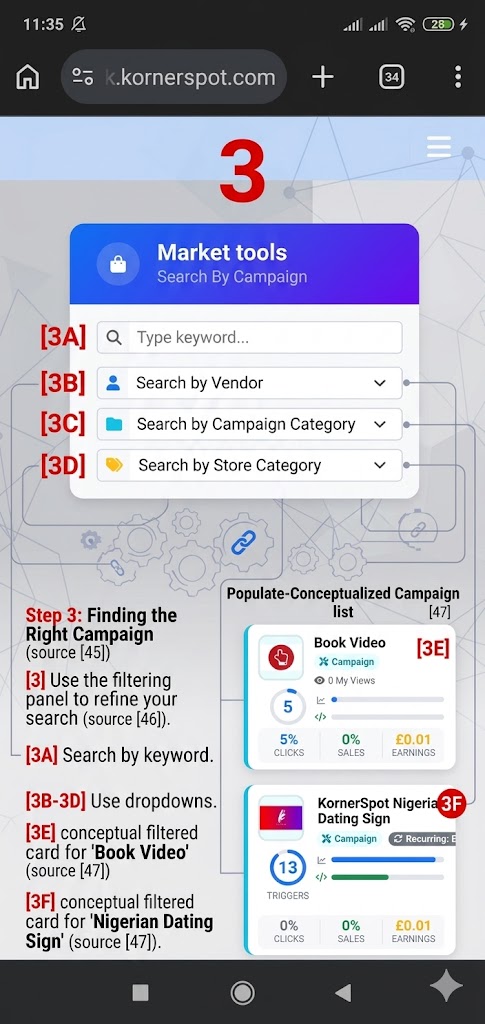
At the top of the Banners & Links page there are search and filter options:
- Search by campaign — type a keyword to search by campaign name.
- Search by vendor — filter campaigns by a specific vendor.
- Search by campaign category — filter by the campaign’s category.
Use these filters to quickly find the campaigns you want to promote
Getting Your Tracking Link
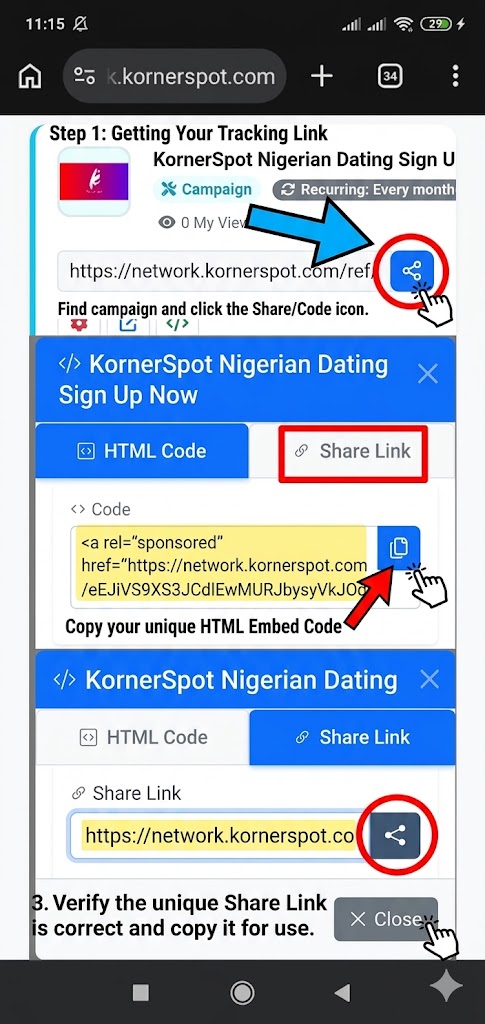
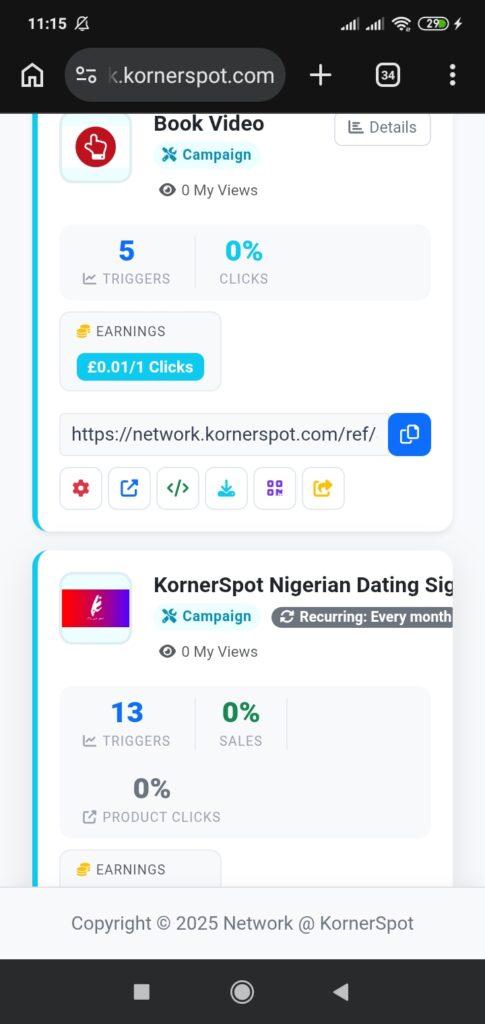
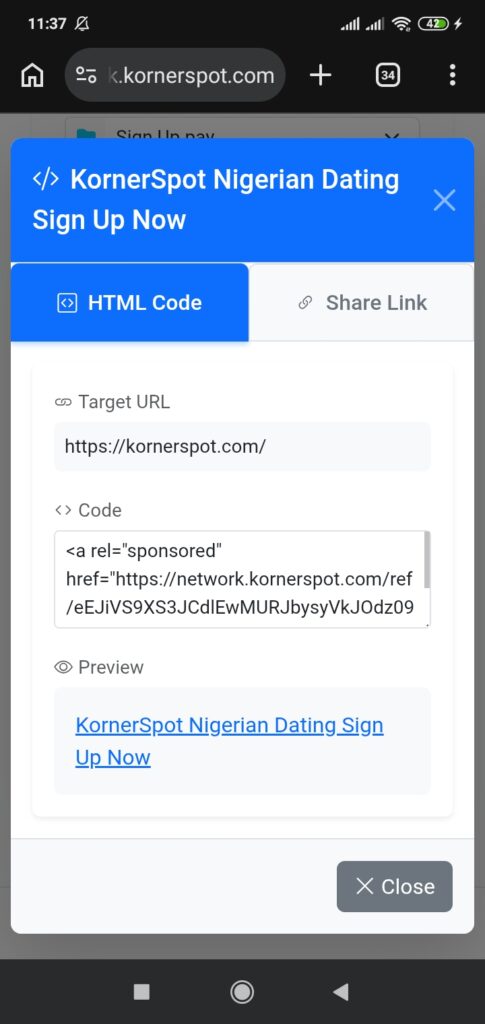
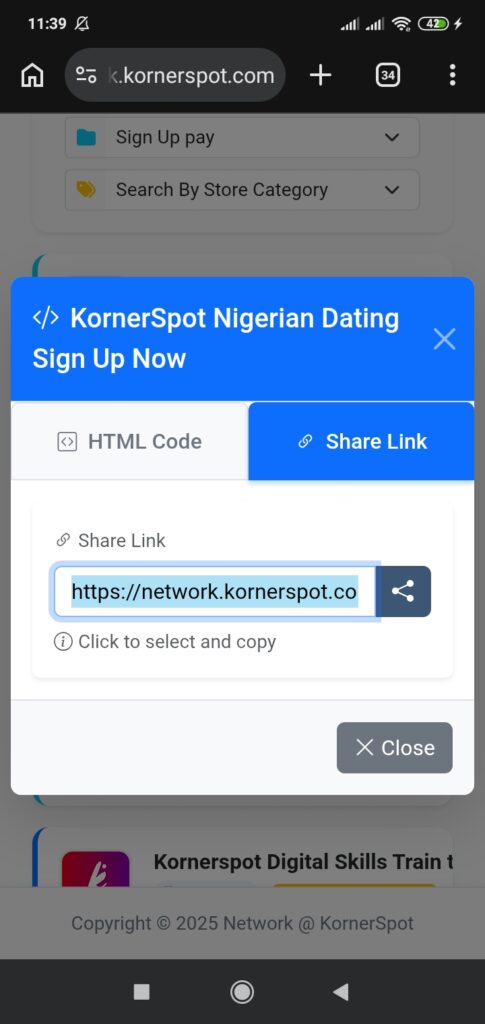
Each campaign card in the list has your unique tracking code already embedded. To get your link or embed code:
- Find or scroll down to the campaign you want to promote.
- Click the Code button on the campaign card.
- Copy the tracking link or embed code that appears.
- Paste it into your website, blog, social media post, or email newsletter.
Step 4: Promoting Your Link
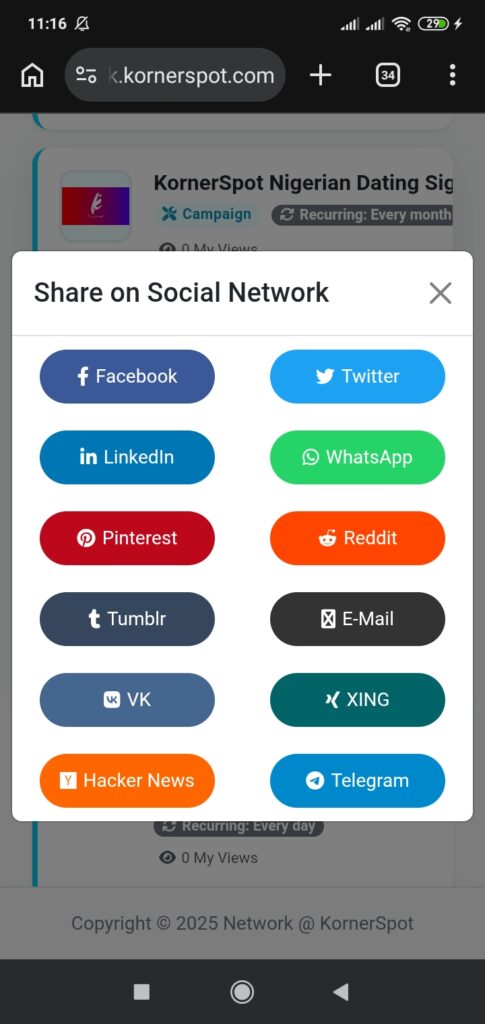
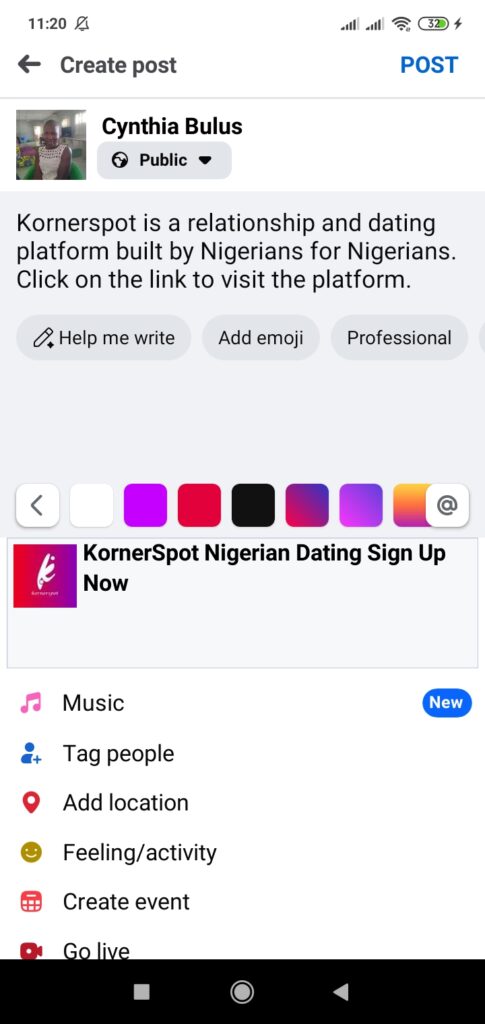
- Every click and sale through your unique link is tracked automatically and credited to your account.
- You can promote as many campaigns as you want at the same time.
- All commissions from all campaigns accumulate in the same wallet, and can be requested for payout once you reach the minimum withdrawal threshold.
Step 5: Earning Commissions
Every click on your tracking link is recorded in the system. Commissions accumulate in your wallet for clicks, sales, special actions, and even general referral link clicks. If you’ve referred other affiliates, you may also earn a share of their activity through network commissions.
Commissions appear in your Wallet and can be requested for payout once you reach the minimum withdrawal threshold.
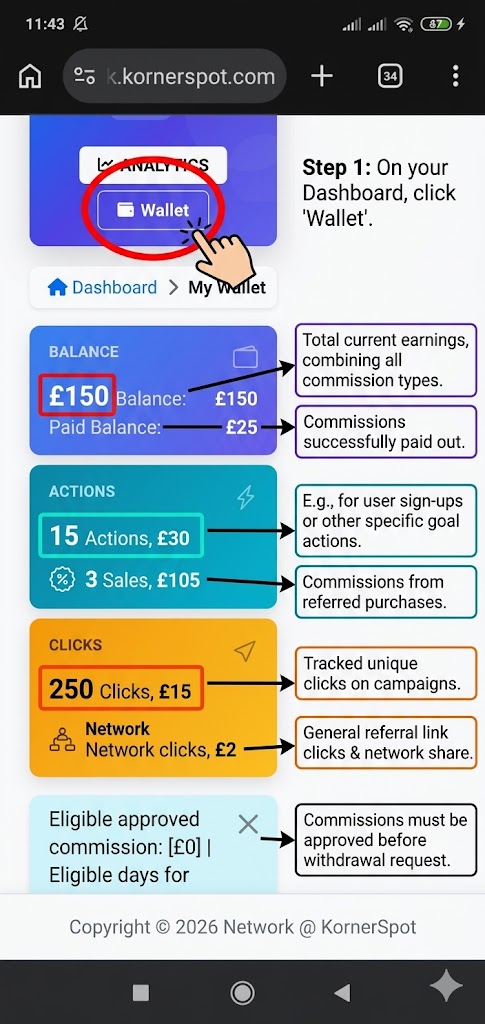
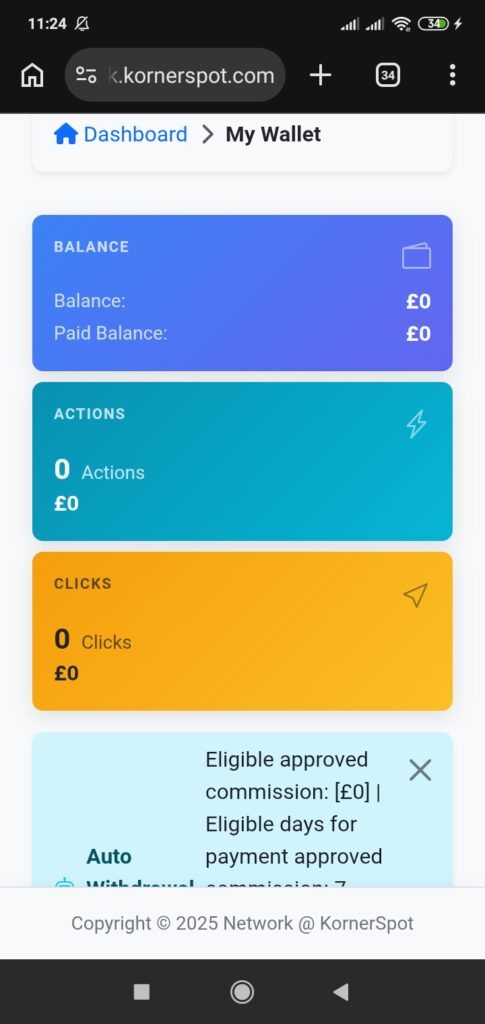
To begin the withdrawal process, navigate to the dashboard and click “wallet”.
The wallet shows:
- Click commissions — earned from tracked clicks.
- Sale commissions — earned from referred purchases.
- General click commissions — earned from general referral link clicks.
- Action commissions — earned when a referred user completes a specific action.
- Network commissions — if the affiliate has referred other affiliates to the platform, they may also earn a share of their referrals’ activity.
Step 6: Requesting a Withdrawal
- To receive your earned commissions, you must first ensure your payment details are set up. A notification at the top of your wallet will remind you of this.
- Once you reach the minimum required balance, a “Request Payout” option will appear and the withdrawal process can begin.
- When you click “Click here” in the notification, you will be taken to your Payment Details page.
- Here you can submit your bank details to be used for withdrawals.
- Finally, choose your preferred method for all future payouts.
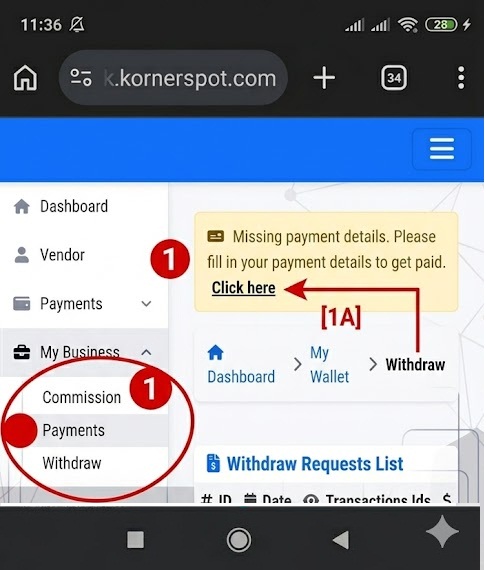
Affiliates can view the full history of their clicks, sales, commissions, and payout requests from their My Wallet page in their dashboard.
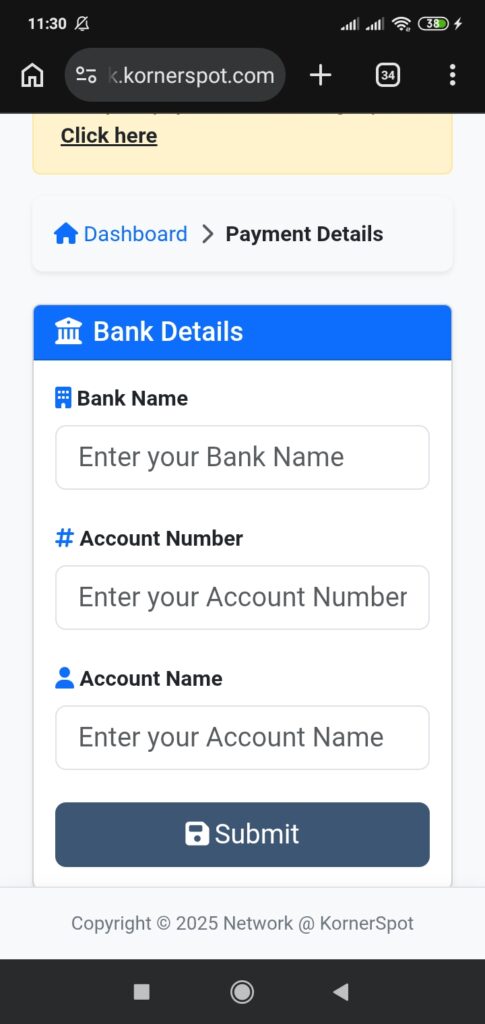
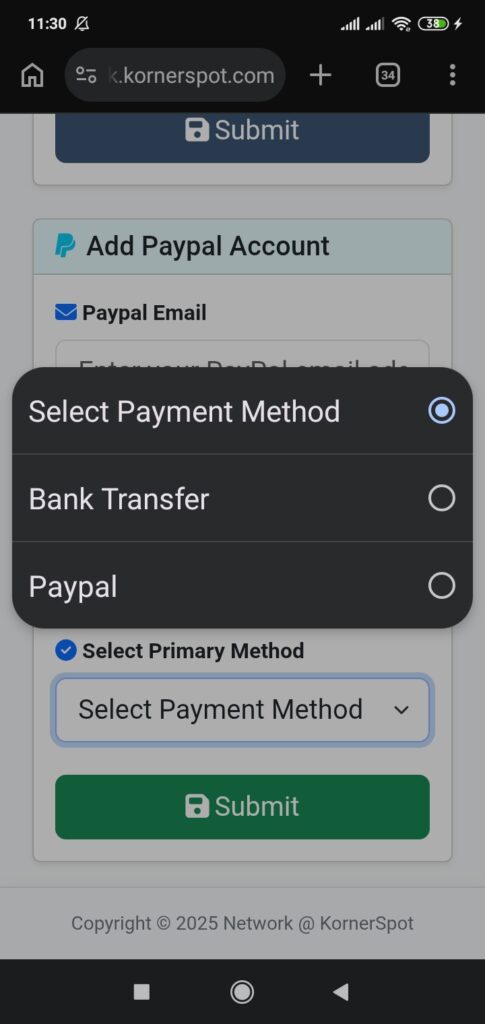
Affiliates can view the full history of their clicks, sales, commissions, and payout requests from their My Wallet page in their dashboard.